How to Open a PES File Without Buying Software
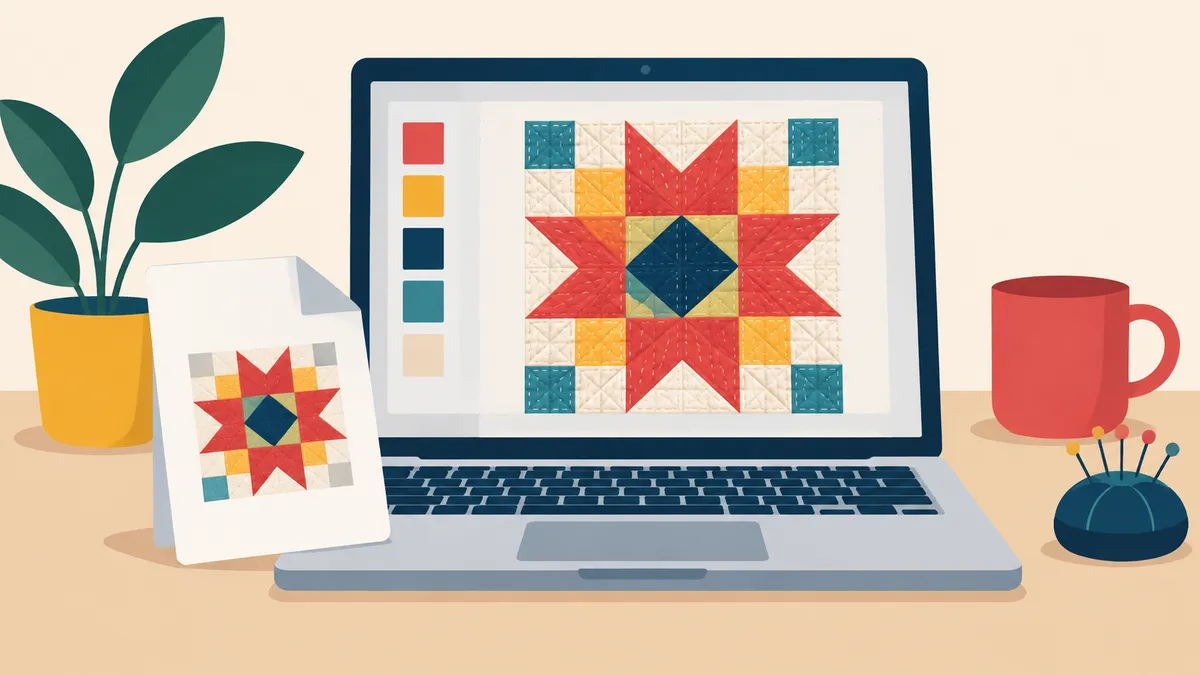
You double-click a .pes file and your computer shrugs. Neither Windows nor macOS ships with anything that understands embroidery formats, so the file just sits there with a generic icon. Here are the real ways to see what is inside, from slowest to fastest.
What a PES file actually is
A PES is the design file Brother and Baby Lock home machines read. Inside are the stitch instructions (where the needle moves, where it trims and stops), a preview image, the design's dimensions, and a list of thread colors from Brother's chart. Any tool that opens one is really decoding those instructions back into a picture of the design.
Option 1: your embroidery machine
The machine itself is the most available viewer: put the file on a USB stick and the machine's screen shows the design. It works, but it is slow, the preview is small, and it ties up the machine. Fine for a final check, clumsy for browsing a folder of downloads.
Option 2: digitizing software
The big suites (Brother's PE-Design, Embrilliance, Hatch, Wilcom) all open PES files, but they cost anywhere from $75 to nearly $2,000 and most of them only run on Windows. If you already own one, this is obviously the way. Buying one just to look at a file is not.
Option 3: online viewers
A search turns up plenty of free PES viewers. The catch with most of them is that the file uploads to someone else's server to be rendered. For a downloaded stock design that may not matter. For a logo a client sent you, or artwork you have not published, it is worth knowing where the file goes.
Option 4: read it in your own browser
This is the route we built embroiderly for, so take this paragraph with that in mind. The Convert page at embroiderly reads pes, pec, dst and exp files directly on your device - the file never leaves your computer, nothing uploads - and renders a true stitch preview: the actual stitch path the machine will sew, not a flattened thumbnail. Alongside it you get the stitch count, the exact dimensions (useful before you commit a hoop), and the color blocks. One honest caveat: DST and EXP files carry no thread colors inside, so for those the preview assigns placeholder colors and labels them as such - you assign the real thread colors yourself from the design's documentation. If you need the design in a different format for your machine, the same page converts it free.
The habit worth building
However you open it, look at the file before it goes near the machine. A ten-second preview catches the wrong design, the wrong size, and the wrong colors while they are still free to fix - then test-sew on scrap before the garment.