How to Transfer Embroidery Designs to a Brother Machine by USB
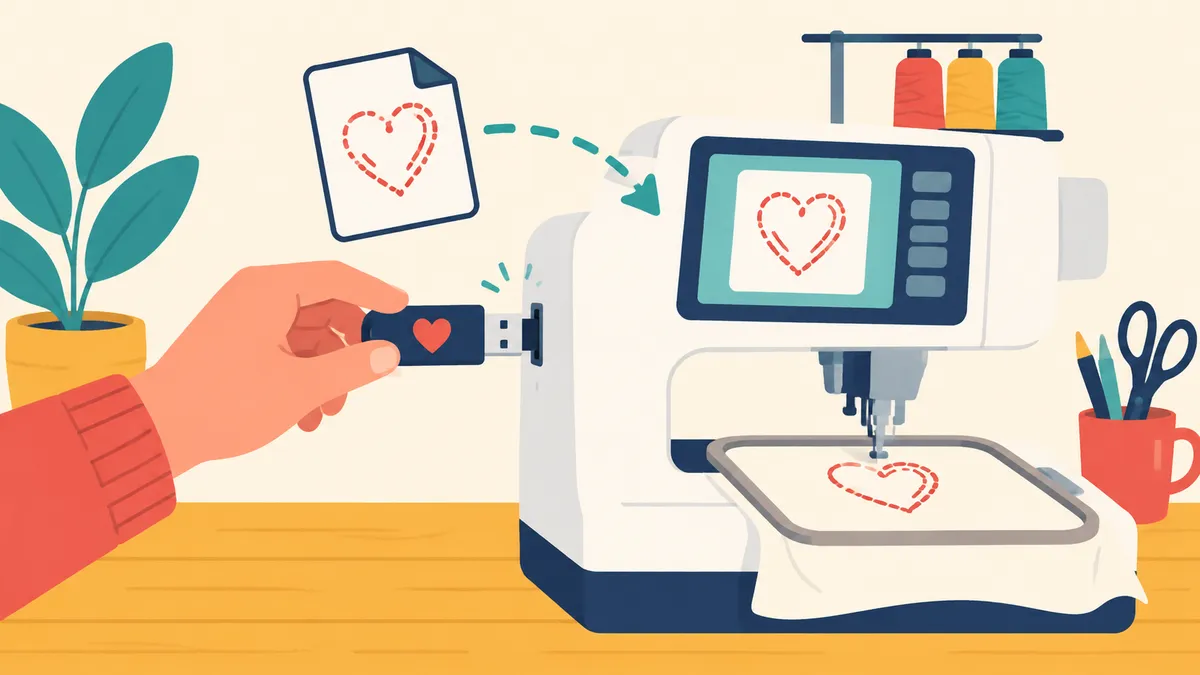
Getting a design from your computer onto a Brother embroidery machine is a five-minute job once you know the rules - and a frustrating mystery when one of them bites you. Here is the whole path, with the model differences flagged. Details vary by model, so where Brother's documentation is linked, pull the page for your machine.
1. Unzip the download first
Designs from online shops almost always arrive as zip archives, and the machine cannot read those. Extract the zip and find the stitch file inside - you want the .pes (or .dst), not a working file like Embrilliance's .be and not the preview images or PDFs that shops include.
2. Check the format against your model
Brother machines read .pes and .dst, but the exact list varies by model - Brother keeps the per-model list on its support site (Design format types that the machine will read). If your design is in a format your model does not read, convert it first: a browser converter that runs on your own device (embroiderly's reads pes, pec, dst and exp free) avoids installing anything.
3. Check the design fits your hoop
A design larger than the hoop does not show an error on Brother machines - it silently does not appear in the list. Compare the design's dimensions with your hoop before copying anything. Resizing is possible within limits (about 10 percent either way as a rule of thumb; see our guide to resizing and density), but the machine will not warn you.
4. Prep the USB stick
Format the stick FAT32. Smaller is genuinely better here: Brother publishes a USB media compatibility list per model, and users report the most reliable results with modest-capacity sticks - 8 GB or less, and some older machines prefer far smaller. A nearly-empty stick also avoids overwhelming the machine's file list. The transfer steps for USB media are in Brother's documentation (Transfer designs using USB media).
5. Copy the file to the root of the stick
Not inside a folder - on the PE-770 and PE-800 generations especially, the machine only lists files at the top level of the drive. Give the file a short, plain name: letters, numbers, hyphens. Accented characters are reported to make files invisible on Brother machines.
6. Plug in and select the design
Insert the stick in the machine's USB port, tap the USB icon on the screen, and your designs should appear. Some newer Brother models also transfer over Wi-Fi or a direct cable connection with Brother's software - the options for your model are in its manual (Transfer designs using the USB cable covers the cable route).
If the machine still cannot see the file
Work through our checklist: Embroidery machine not reading your file? covers the seven usual causes in order. And when the design does load, test-sew it on scrap before it touches the real fabric.