What Is a PES File? The Brother Embroidery Format Explained
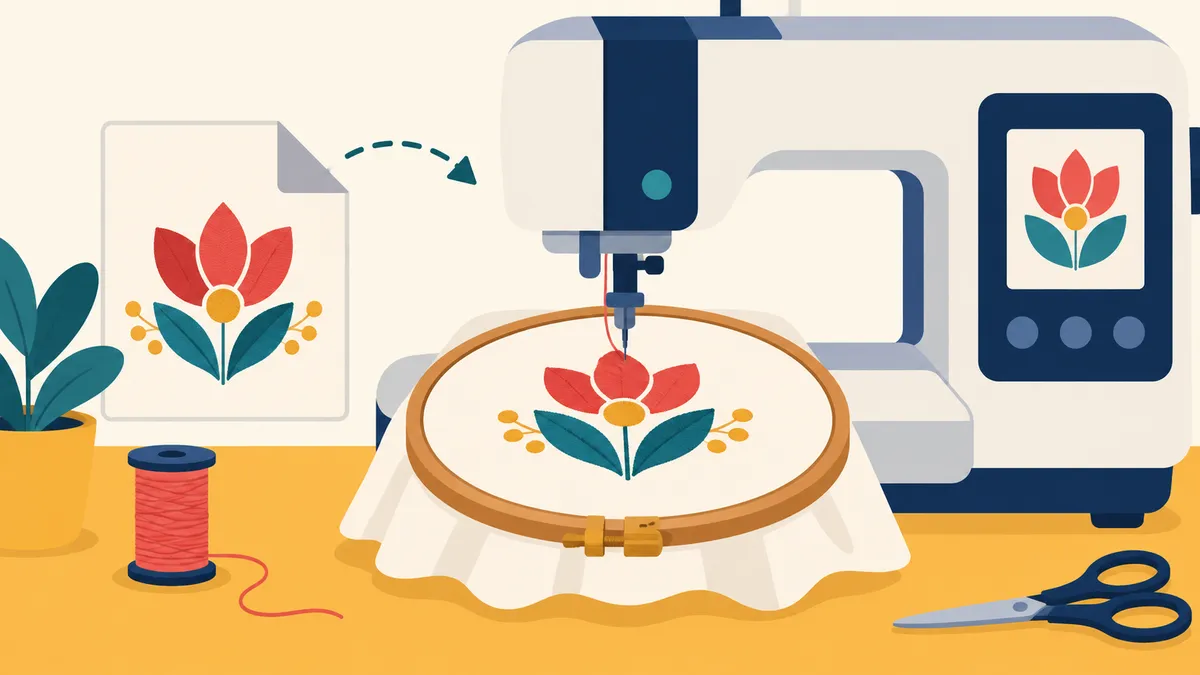
If you own a Brother or Baby Lock embroidery machine, PES is the design format it reads. Other brands speak their own languages: Bernina machines use ART and EXP, Husqvarna Viking and Pfaff use VP3. Here is what a PES file actually contains, why colors sometimes look wrong when you open one, and how an image becomes one.
What a PES file actually is
A PES file is a stitch program, not a picture. Your machine does not see shapes or colors the way you do on screen. It reads a list of commands: move the hoop here, drop the needle, move again, trim, stop, change thread. A typical small design is a few thousand of those commands in a row.
Modern PES files have two parts. The first part holds the design information your computer cares about: a preview image, the design's size, and the list of thread colors with their names. The second part, called the PEC section, is what the machine itself reads. The PEC section stays the same across PES versions, so machines new and old can always read it. When you transfer a design and the machine shows it slightly differently than your computer did, you are seeing the difference between those two halves.
The fixed color chart, and why it matters
Here is the detail that trips up most people: the PEC section does not store exact thread colors. It stores an index into a fixed chart of Brother thread colors. If your design uses a coral pink that is not on that chart, the file silently snaps it to the nearest entry. The full PES half can carry richer color information for software that reads it, but anything that only reads the machine half - including some apps and older machines - shows the snapped color.
This is why the same file can look different in two programs, and why a design that looked perfect on one screen can look off on the machine's display. The fix is boring but effective: pick thread colors that exist on the Brother chart when you digitize, so nothing gets snapped. Good digitizing tools do this for you automatically when you choose PES as your output.
Jump stitches and trims
When a design has separate islands - the two eyes of a smiley face, say - the machine has to travel between them. Older files leave a long connecting stitch you cut by hand afterward. Newer PES versions can carry a real trim command, and modern machines cut the thread for you. If you are hand-trimming a lot, it is usually the file, not the machine.
PES versions
PES has been through many versions. Version 1 is the oldest and simplest. Later versions add richer design information and previews, while the machine-readable PEC part stays compatible. If a design will not open on an older machine, saving it as an earlier PES version often solves it.
How big can a PES design be?
That depends on your hoop, not the file. Many home Brother machines come with a 4x4 inch hoop (about 100x100 mm), and larger models take 5x7 inch hoops and up. The file just stores coordinates; if the design is bigger than your hoop, the machine will not sew it. Check the design's dimensions before you transfer it, and resize in your digitizing tool rather than hoping.
How to make a PES from an image
Converting a photo or logo into stitches is called digitizing, and it used to mean either expensive desktop software or paying a digitizing service a few dollars per design. Browser-based tools changed that. In embroiderly's free studio you drop in a PNG or JPG, set the hoop and size, and the digitizing runs on your own device, and your image stays on this device unless you choose to save the design to your account. You get a real stitch preview, and one free save if you want the design on another device later. Design downloads are not available yet; they arrive with the Pro plan, which is not on sale.
A few practical tips that apply no matter what tool you use:
- Start with clean, high-contrast art. Simple logos digitize better than busy photos on a first try.
- Limit your thread colors. Six or fewer is a good ceiling for a first design; every color is a stop and a re-thread.
- Size for your hoop before you digitize, not after.
- Check the stitch count. A 4-inch design in the 5,000 to 10,000 stitch range is normal for solid fills.
- Always test-sew on scrap fabric before the real garment. Software can prove a file is well-formed; only a sew-out proves how it looks in thread.
How to open a PES file without a machine
Brother's own software opens PES files, and so do most digitizing apps and many free viewers. If someone emails you a PES and you just want to see what it looks like, a browser viewer is the fastest route - no install, no upload of the file to a server if you pick one that reads it locally.
The short version
A PES file is a machine program with a fixed color chart, a computer half and a machine half, and a version number older machines can be picky about. Keep your colors on the Brother chart, size for your hoop, and test on scrap first. If you want to try it, embroiderly's studio is free and runs in your browser.